

Changing your password
You can change your password at any time in your account settings.
Before you start: check that a recovery email address and phone number are added and verified in "Recovery options". If you forget your new password, you can use them to get back into your account.
How to change your password
1. Open the account menu. In your mailbox, click your name or initials. A menu with your name and email address opens.
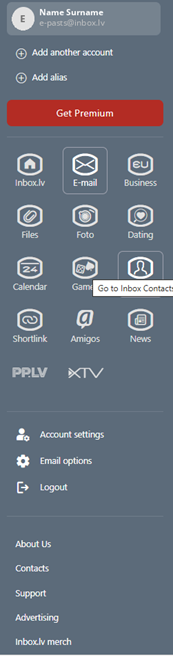
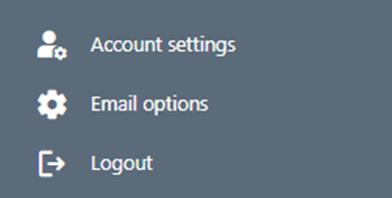
2. At the bottom of the menu, click "Account settings".
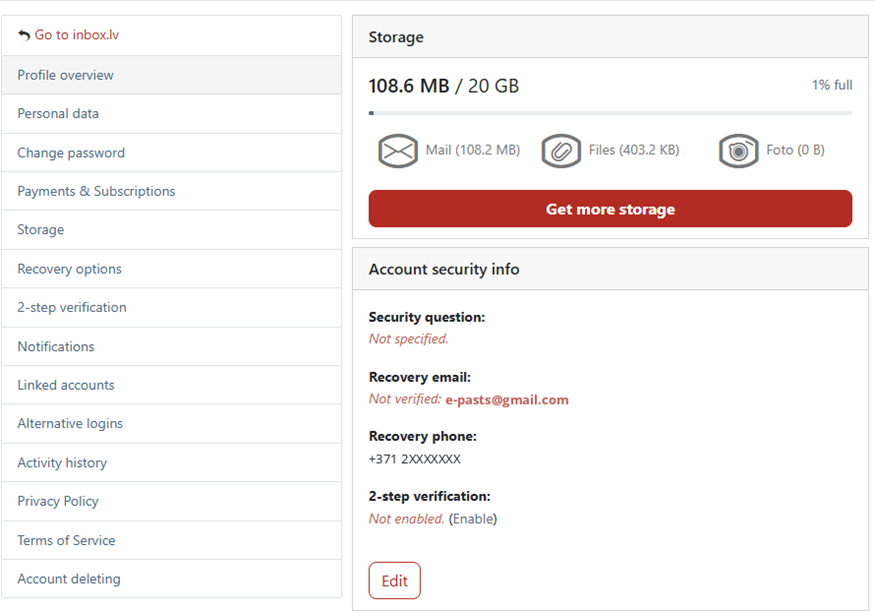
3. In the list on the left, select "Change password".
4. Fill in the fields:
– Current password: enter the password you use to sign in now.
– New password: enter your new password.
– Repeat new password: enter your new password again.
To check that you typed the password correctly, click the eye icon on the right side of the field.
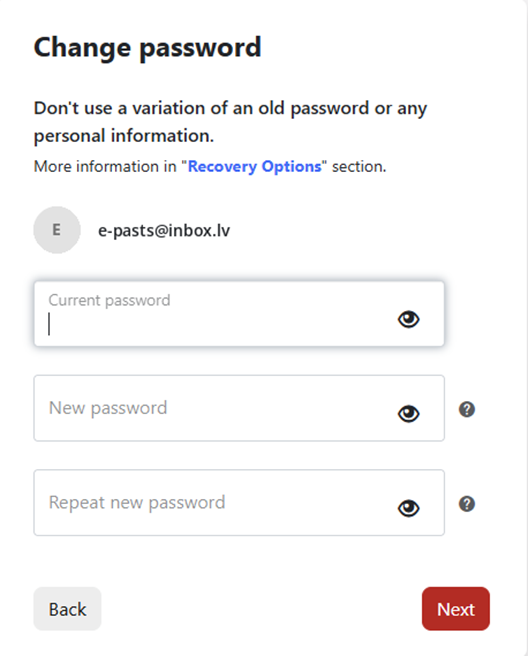
5. Click "Next" and follow the instructions on the screen. If you don't want to change your password, click "Back".
Tips for a secure password
• Don't use your previous password or a variation of it (for example, your old password with a different number at the end).
• Don't use personal information: your name, surname, date of birth or phone number.
• Don't use the same password on other websites.
!!! Password requirements can be found here (link)
Tags: Password
If you can't find the answer to your question, please contact us.
In case you did not find your answer contact us